How to Schedule eCard Delivery
Create your card now and have it delivered at the perfect moment — a birthday morning, a holiday, or any date up to 90 days away.
How to Schedule
Make the card as usual. Scheduling is a Card Pack feature, so the card needs a credit applied.
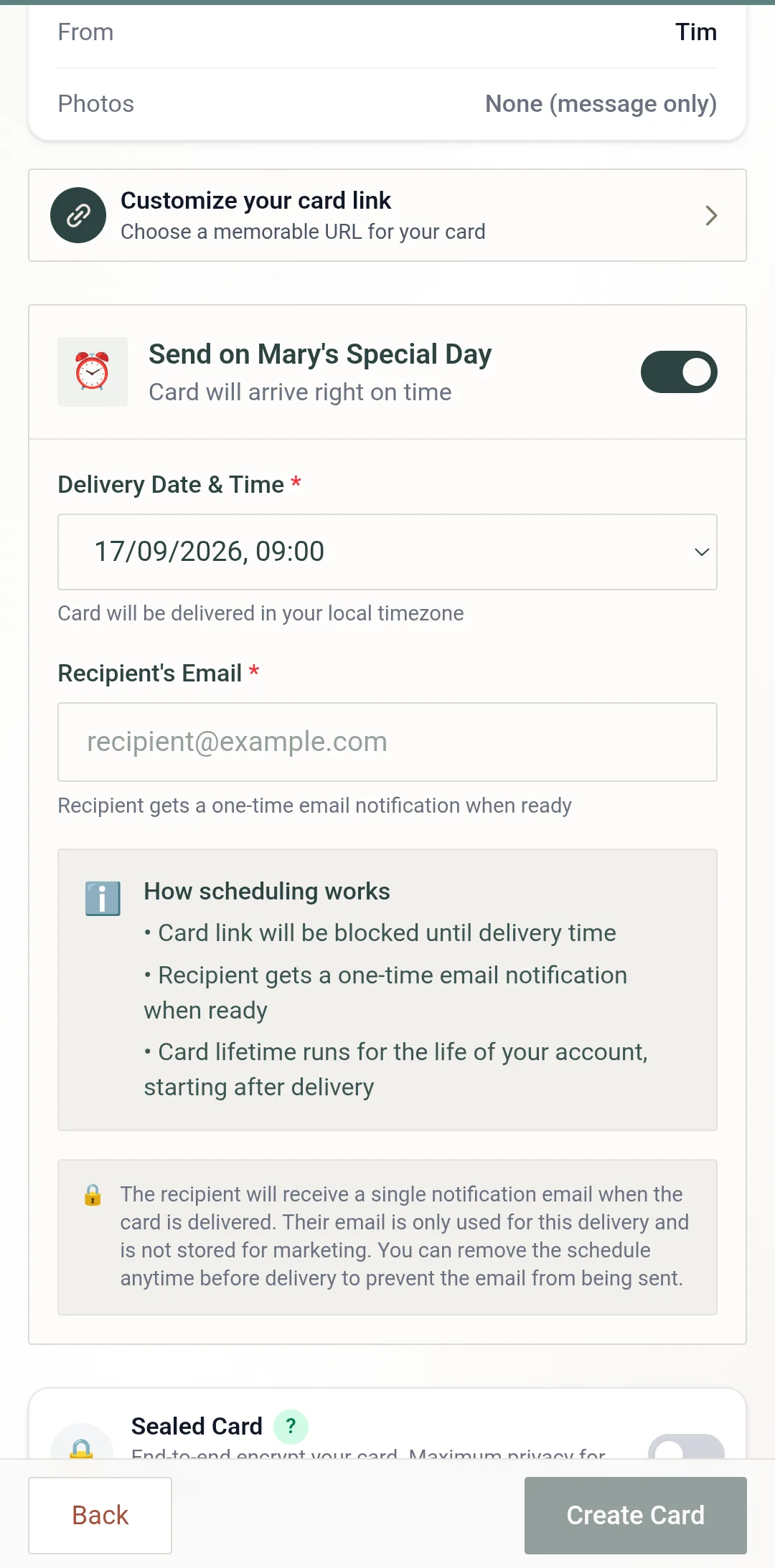
On the Send step (Ready to Share), turn on Send on their Special Day. It is off by default — "Send immediately when created".
Pick the Delivery Date & Time: at least 1 hour ahead, up to 90 days out. The time is in your local timezone (change it under Timezone in your Profile).
Enter the Recipient's Email. A scheduled card needs it — that is how they get the link on the day.
Tap Create Card. It lands in your dashboard's Scheduled tab with a countdown.
How scheduling works: The card link is blocked until delivery time. At that moment the recipient gets a one-time email with the link — their address is used for that delivery only, never for marketing — and the card's clock starts then, not when you made it. Remove the schedule any time before delivery and no email goes out.
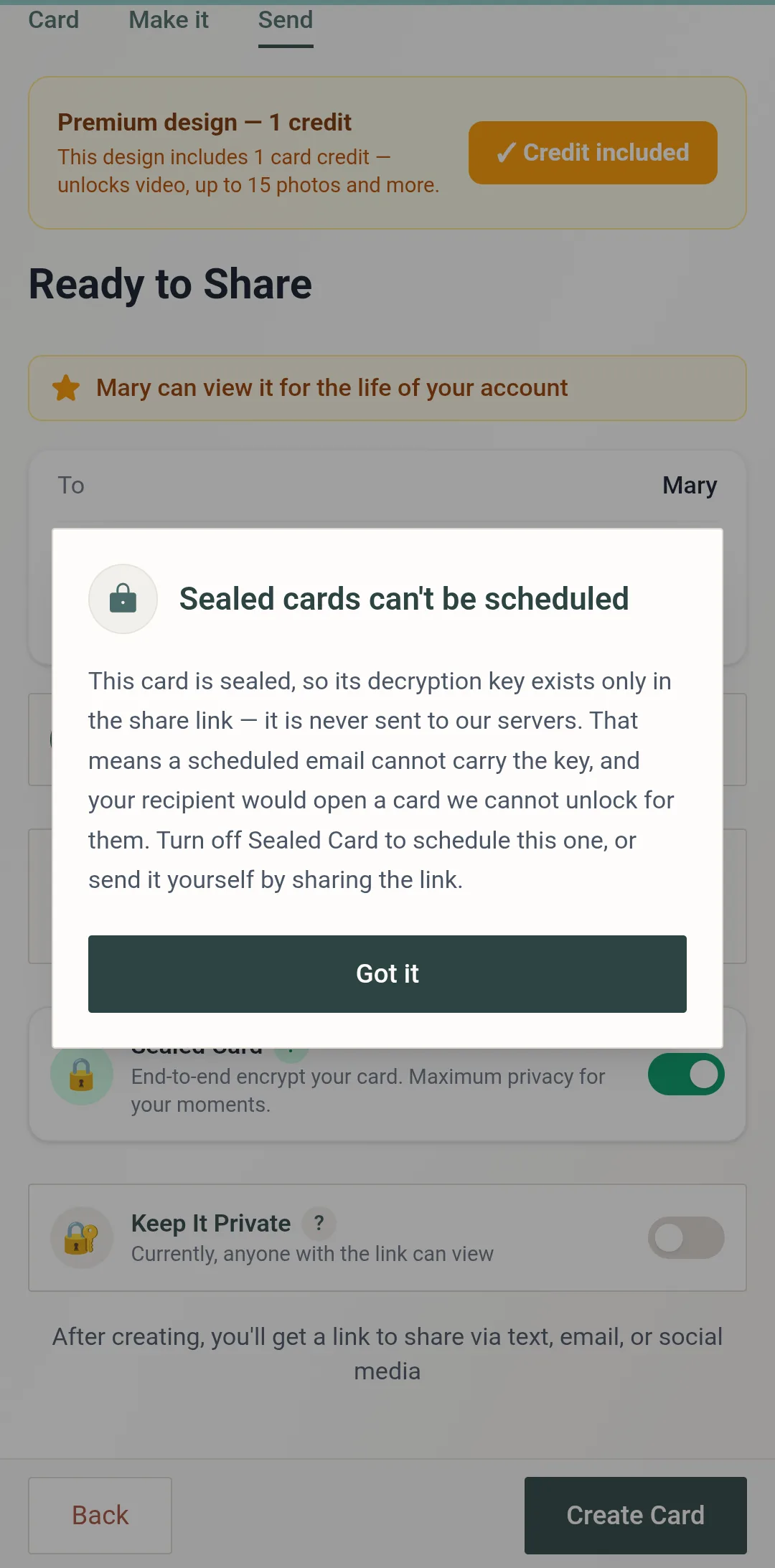
Sealed Cards Cannot Be Scheduled
A Sealed Card is end-to-end encrypted: its decryption key exists only in the share link and is never sent to our servers. A scheduled email cannot carry that key, so your recipient would open a card we cannot unlock for them. Try to schedule a sealed card and the app stops you with the message on the right.
Two ways forward: turn off Sealed Card and schedule as usual, or keep it sealed and send the link yourself on the day. Protected cards are fine — a PIN, email verification or single-view all work with scheduling; a PIN plus a delivery time is the classic surprise setup.
Managing Scheduled Cards
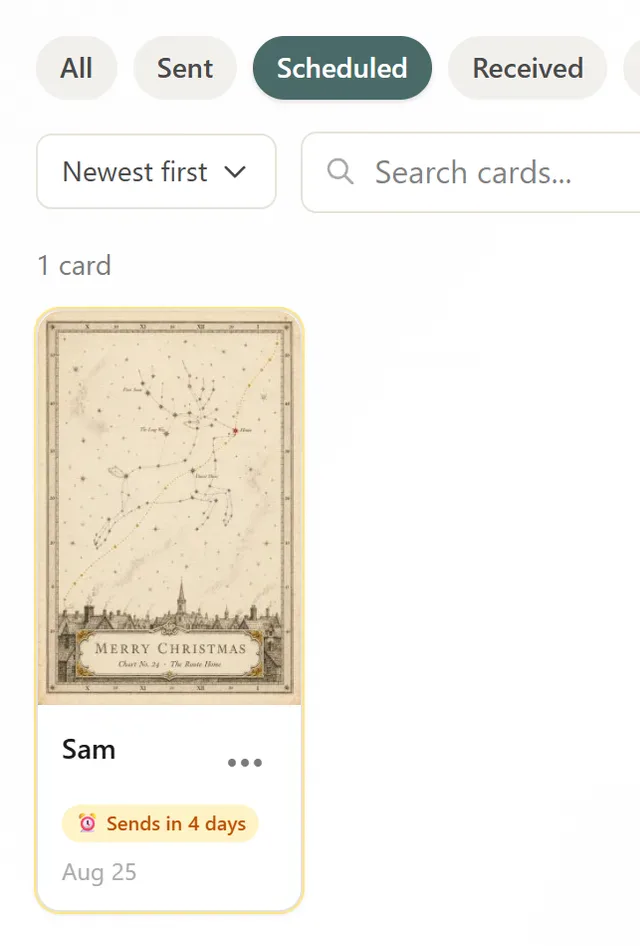
From your dashboard's Scheduled tab:
- ✓Countdown — Each card shows "Sends in 3 days" and the exact delivery date and time
- ✓Preview — the card before it sends
- ✓Edit — the card's photos, message, or settings
- ✓Reschedule — to pick a different date or time
- ✓Send now — to deliver it straight away instead of waiting
- ✓Delete — the card entirely
Best Uses for Scheduling
Birthdays
Create the card when you think of it, deliver it on the morning of their birthday.
Holidays
Prepare holiday cards in advance and schedule them for Christmas morning or New Year's.
Time zones
Sending overseas? Schedule delivery for their morning, not yours.
Surprises
Combine scheduling with card protection for a surprise reveal at the perfect moment.
Frequently Asked Questions
How far in advance can I schedule a card?
Can I edit a scheduled card before it sends?
What timezone is used for scheduling?
Can I send a scheduled card early?
How does the recipient get notified?
Can a Sealed card be scheduled?
Related
Schedule Your First Card
Get a Card Pack and schedule a card to arrive at the perfect moment.
Create Your Card